 9make
Make screenshots
App Store Screenshot Generator
Turn your app screens into App Store and Google Play screenshots with phone frames, captions and stickers. Design free and export with a watermark, or export clean with Pro. Your files are processed in your browser.
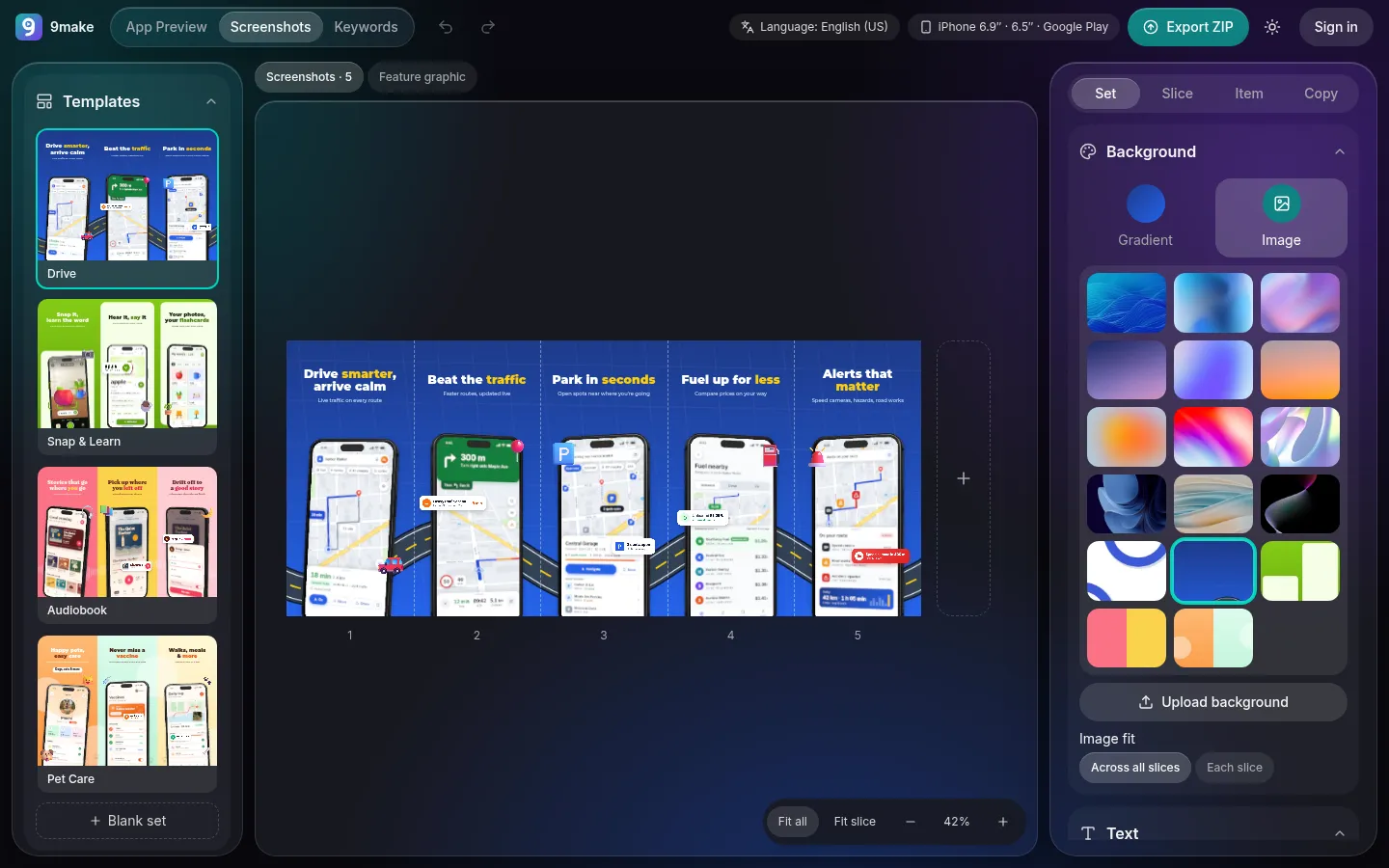
How it works
- Step 1
Pick a template
Start from an app-genre set and swap in your own screens, or begin from scratch.
- Step 2
Edit the set
Change captions, colors, phones and stickers. Screenshots sit side by side on one strip, so art can flow from one to the next.
- Step 3
Export a ZIP
Download the iPhone and Google Play sizes in one file. Exports need a Google sign-in. Free exports carry a watermark, Pro exports are clean.
What you get
App-genre templates
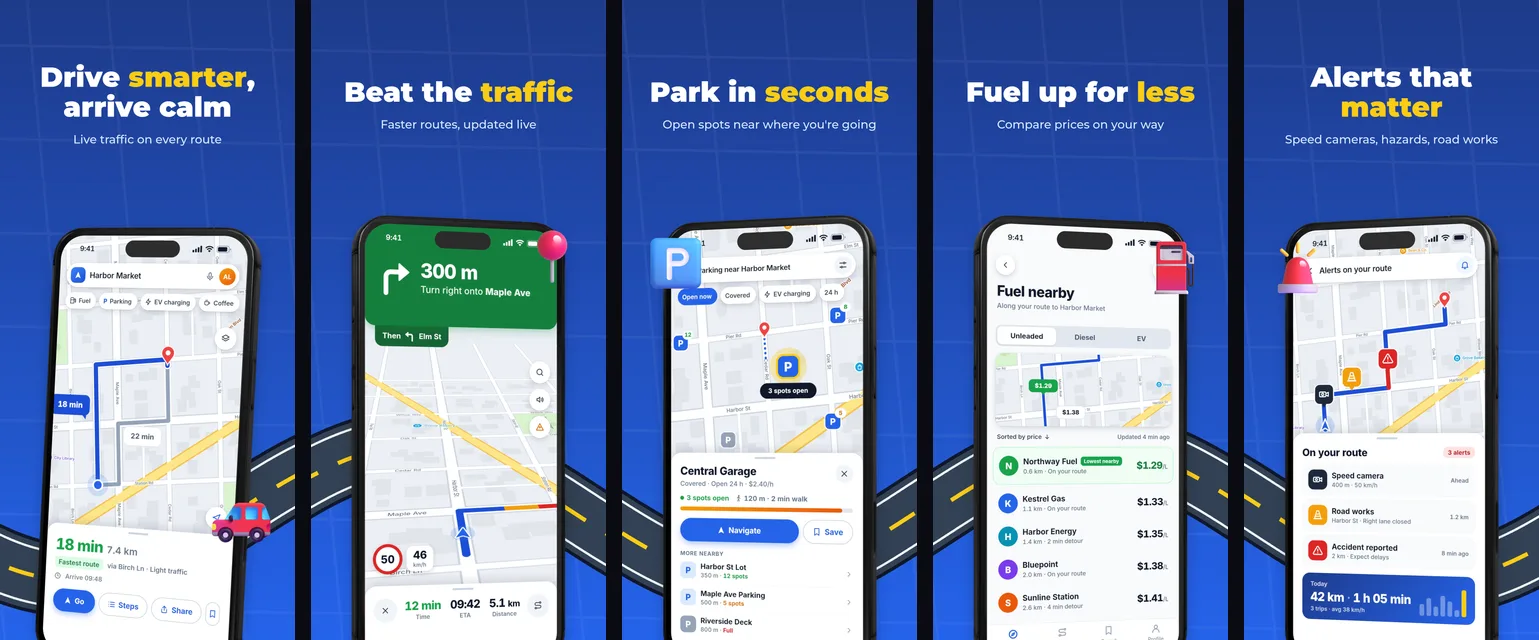
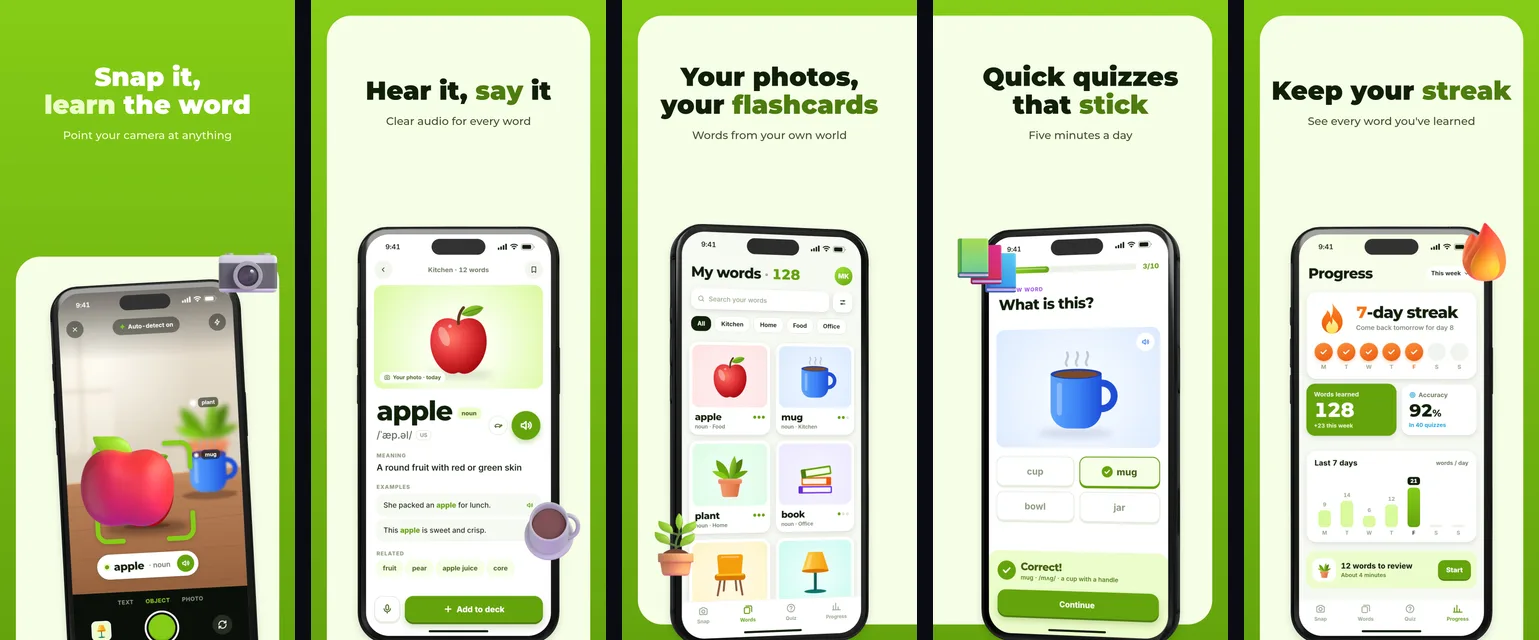
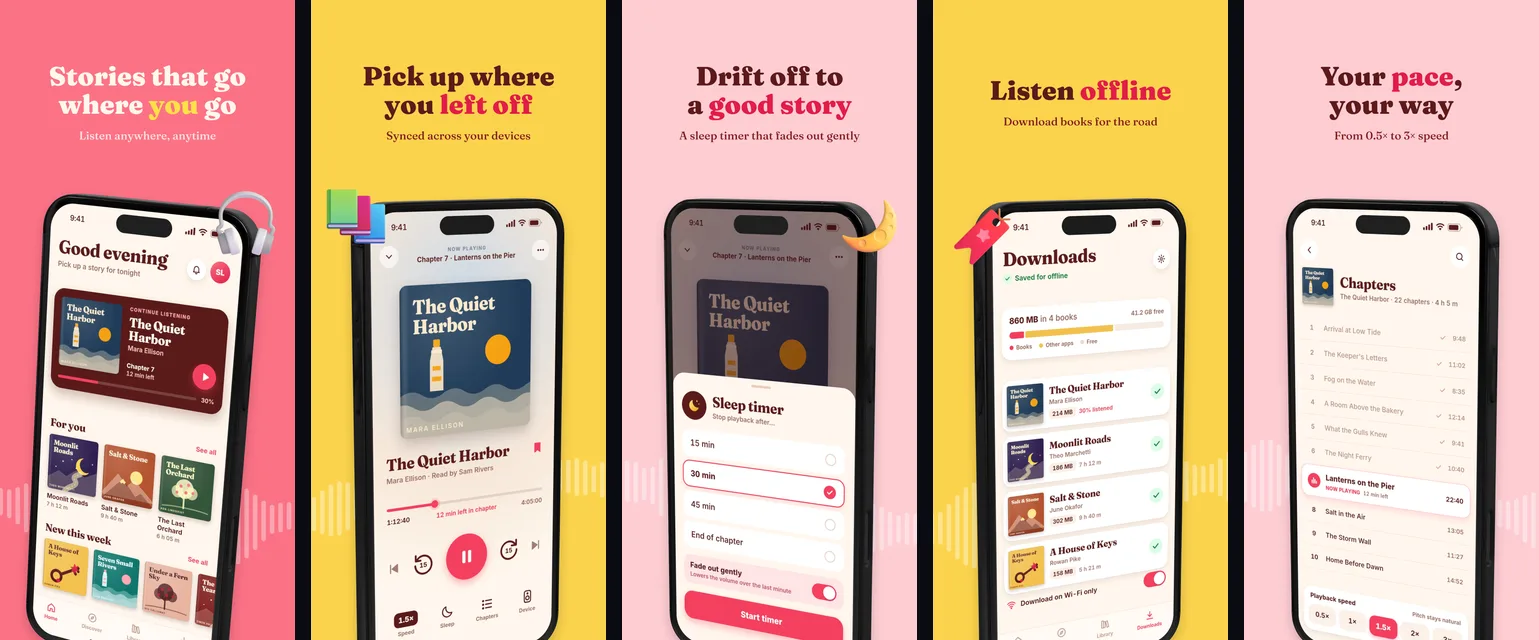
Drive, Snap & Learn, Audiobook, Pet Care, Scanner and Workout sets with matching backgrounds, cards and stickers, all fully editable.
Captions with accent words
Wrap a word in asterisks, like Park in *seconds*, to color it differently from the rest of the headline.
Free sticker library
Search a bundled library of free emoji, doodles and illustrations and drop them next to your phones.
Localization
Write captions for any of the 39 App Store languages, including right-to-left Arabic and Hebrew, and export a folder for each one. Non-Latin scripts use your system font, and right-to-left text is currently drawn left-to-right, so check those exports.
iPhone and Google Play sizes in one ZIP
iPhone 6.9″ and 6.5″, Google Play phone, as RGB PNG files with no alpha channel.
Feature graphic
The 1024 × 500 Google Play feature graphic is part of the same project and the same ZIP.
Starter templates
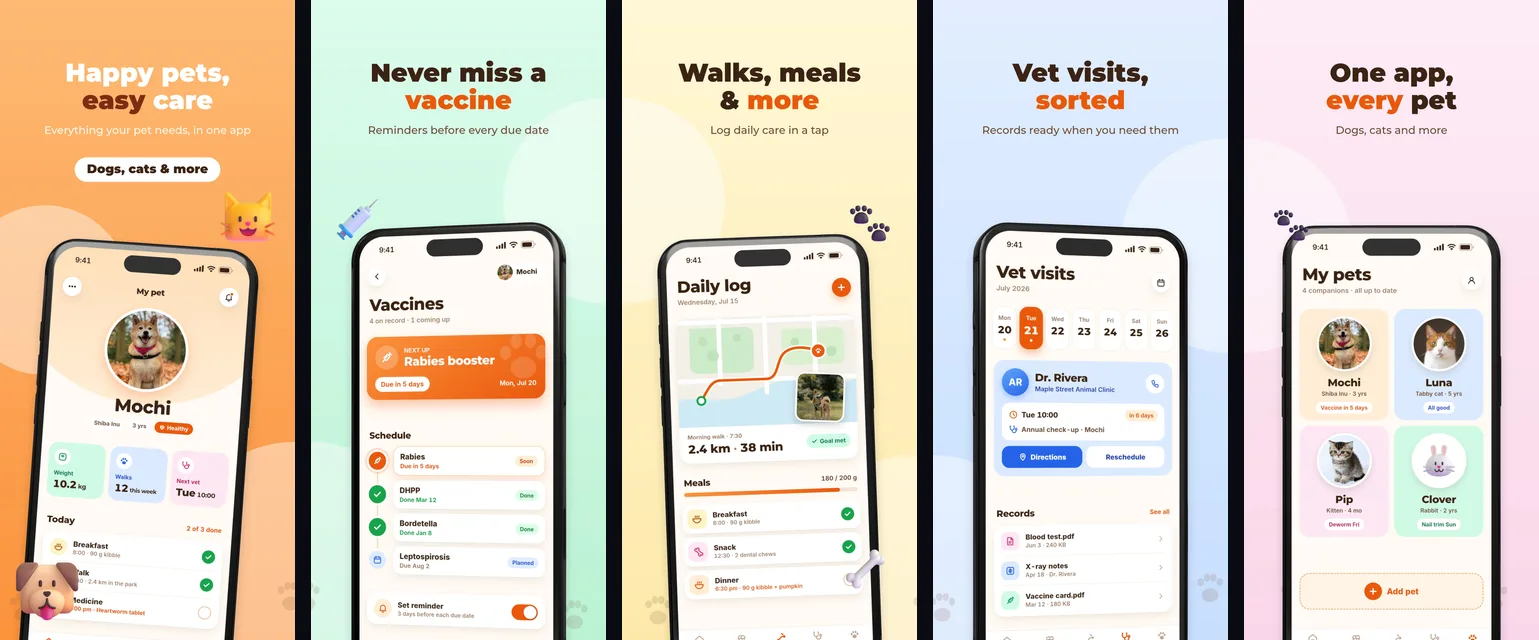
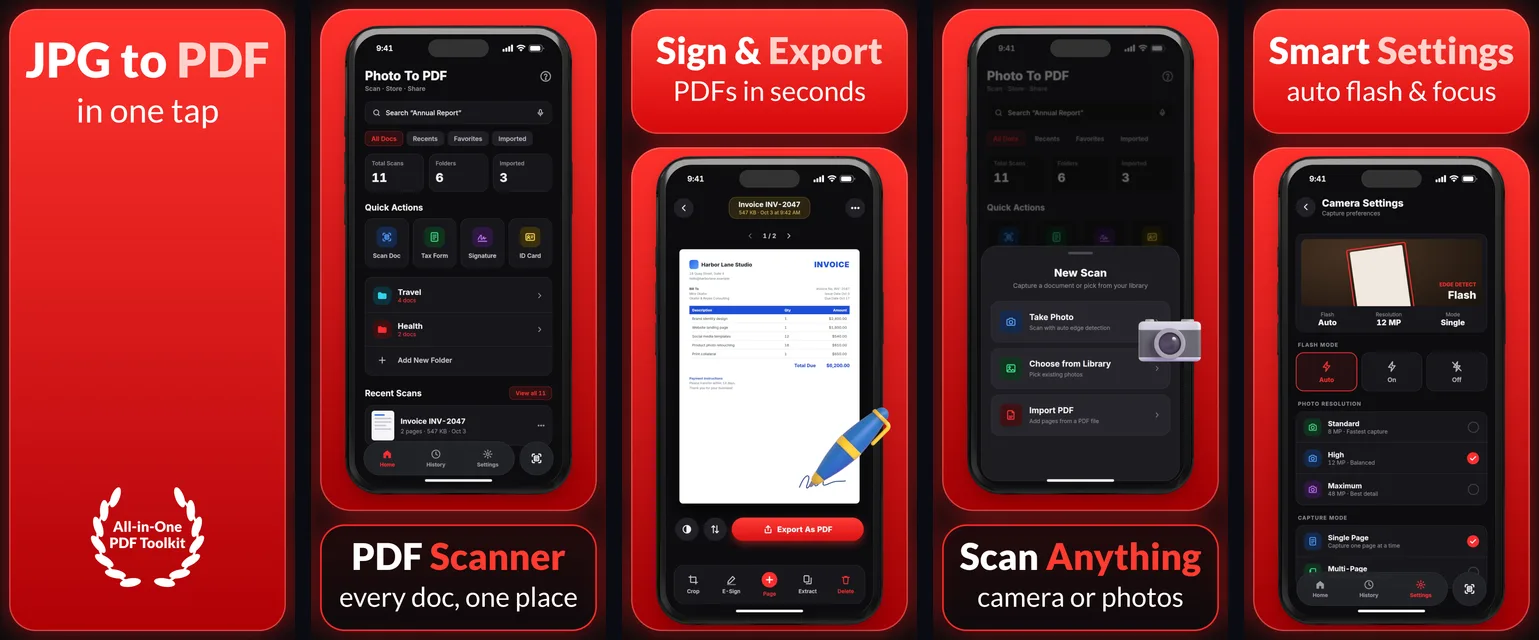
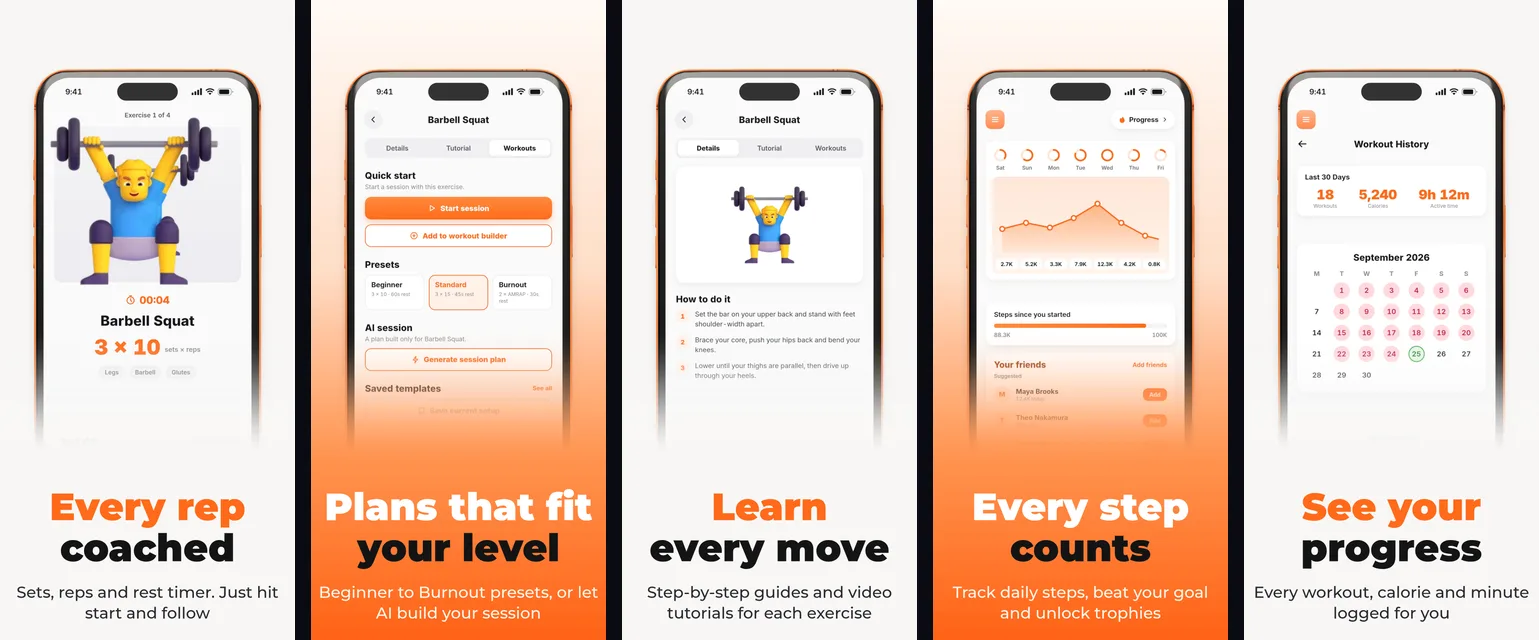
Tips for screenshots that convert
Lead with the benefit, not the feature name. A caption like “Park in seconds” tells a viewer what they get; “Parking module” does not. Keep captions to a few words so they stay readable at the small size of a search result.
Consistency helps too: keep one font, one accent color and one phone style across the set so the screenshots read as a sequence when someone swipes through them. Make the first screenshot carry your main promise, since it is the one most people see. Use the accent-word color on the single word you most want noticed, and keep stickers to support the idea rather than decorate every corner. If you localize, check each language fits: German and Russian captions are often longer than English.
Sizes at a glance
Making screenshots for a game? See the game screenshot maker for gameplay templates and landscape sizes.
Apple requires one iPhone set, 6.9″ (1320 × 2868 is one of three accepted resolutions) or 6.5″ if 6.9″ is missing; Google Play takes 2 to 8 screenshots plus a 1024 × 500 feature graphic. The full tables are in the screenshot size guide.
Frequently asked questions
Is the screenshot generator free?
Editing and previews are free, and free ZIPs carry a 9make watermark. Pro, from $9 a month, downloads the ZIP with no watermark. See pricing.
Are my app screens uploaded anywhere?
No. The images you add stay in your browser, the screenshots are rendered on your device, and the ZIP is built locally. Nothing is sent to a server to draw them.
How many screenshots can one set have?
Up to ten, which matches the App Store maximum. Google Play accepts two to eight phone screenshots, so pick the eight strongest when you upload there. The set lives on one continuous strip, so a background shape or a road can run from one screenshot into the next, and the strip is cut at the right size for each store on export.
Which sizes are exported?
iPhone 6.9″ and 6.5″, the Google Play phone size and the 1024 × 500 Play feature graphic, as RGB PNG files without an alpha channel, which both stores accept. You can choose to export only the sizes you need. iPad sizes are not exported yet; the size guide lists them if you need to prepare those separately.
Can I make screenshots in other languages?
Yes. Add any of the 39 App Store languages, write captions for each, and the ZIP gets one folder per language. Check right-to-left languages after export, since that text is currently drawn left-to-right.
Do I need design skills?
No. Each template is a finished set: swap in your own screens, rewrite the captions and change the accent color. Everything stays editable if you want to move phones, add stickers or start from a blank strip instead.