 9make
Make screenshots
App Preview Video Maker with 3D Phones
Put your app screens or screen recordings on animated 3D phones, add titles and music, and export a 1080p MP4 for your App Store or Google Play listing. Free to edit and export with a watermark; Pro exports clean.
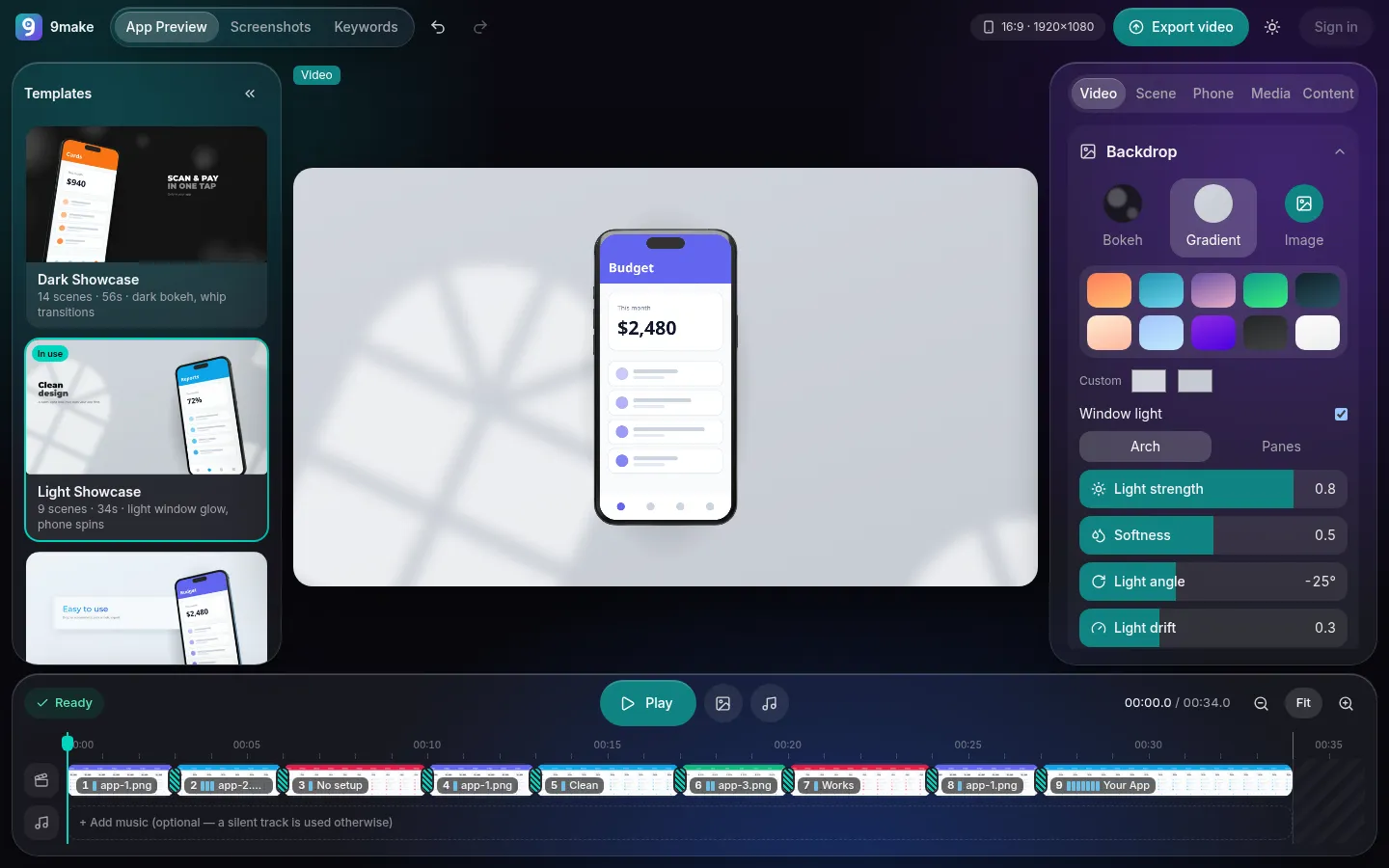
How it works
- Step 1
Add your screens
Drop in PNG or JPEG screenshots, or MP4 and MOV screen recordings.
- Step 2
Choose a template
Each template is a full set of scenes with camera moves, transitions and sample text you can rewrite.
- Step 3
Export the MP4
Render 1920 × 1080 at 30 fps in your browser. Exporting needs a Google sign-in and Pro.
What you get
Fourteen video templates
Dark Showcase, Light Showcase, Soft Cards, Spotlight, Keynote, Pop, Aurora, Paper, Neon and the Casual Pop, Epic Cinematic, Feature Ribbon, Speed Hype and Cozy Life game templates, every scene editable.
Animated 3D phones
Phones rotate, tilt and fan out across scenes, with the camera pushing in or drifting.
Screenshots and recordings
Use still images or screen recordings on the phone screens.
Text styles
Choose fonts, colors, fills and sizes for titles and descriptions, per scene or for the whole video.
Music
Add a track, then set where it starts, trim it, and control volume and fade-out. Audio is exported as AAC.
1080p MP4 export
H.264 video at 30 fps with AAC audio, processed on your device. Pro exports have no watermark.
Video templates
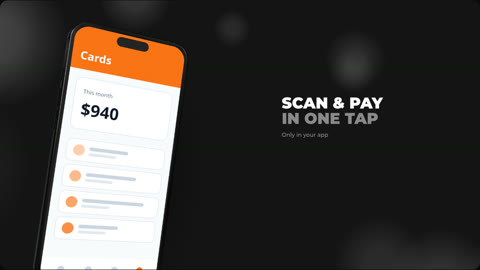
Dark bokeh background, whip transitions. 14 scenes, 56 seconds.
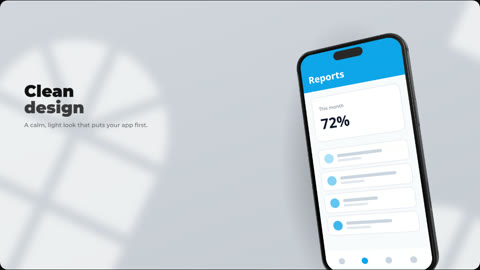
Light window glow with a spinning phone. 9 scenes, 34 seconds.
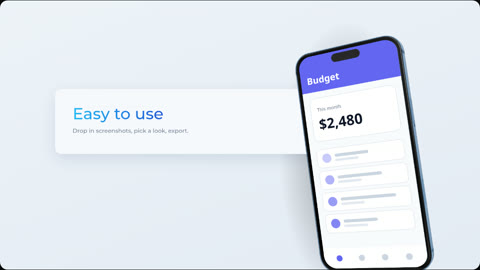
Soft cards and gradient titles. 13 scenes, 36 seconds.
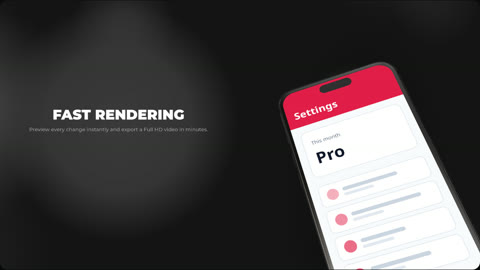
Dark spotlight with leaned phones. 12 scenes, 49 seconds.
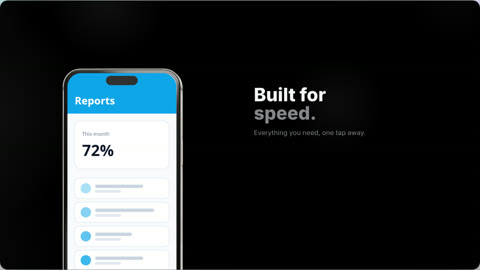
Black stage with big one-word beats. 12 scenes, 40 seconds.
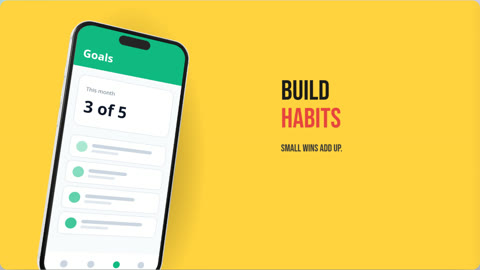
Bold flat colours and quick cuts. 13 scenes, 30 seconds.
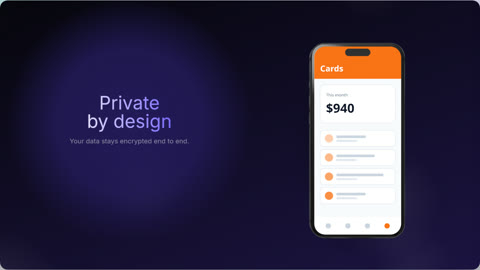
Indigo glow and gradient titles on a dark stage. 11 scenes, 43 seconds.
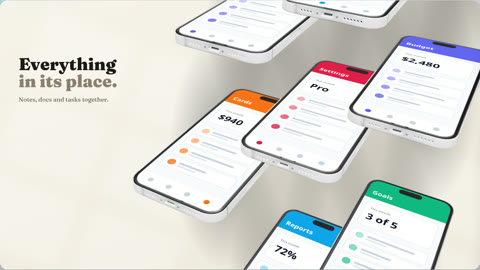
Warm paper, serif titles and a flat lay of phones. 9 scenes, 35 seconds.
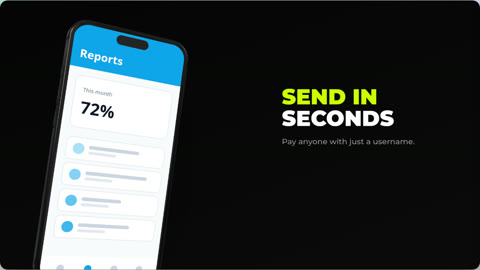
Neon lime on black with spinning phones. 12 scenes, 28 seconds.

Casual game: beat-synced pop captions, confetti and music. 12 scenes, 25 seconds.

Epic strategy / RPG game: gold titles resolving from blur, embers and battle music. 12 scenes, 26 seconds.
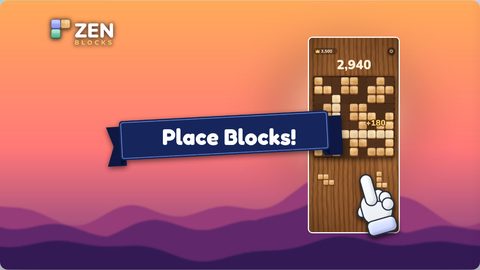
Word and puzzle game: portrait gameplay, ribbon captions, sparkles and music. 8 scenes, 25 seconds.

Racing and action game: beat cuts, stamped italic slogans, speed lines and music. 15 scenes, 26 seconds.
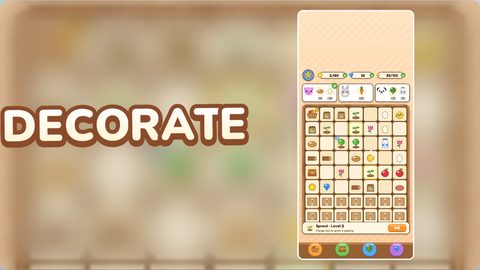
Cozy life sim: bouncing soft captions, sparkles, dissolves and acoustic music. 9 scenes, 29 seconds.
Tips for a better preview
Plan the video around three moments: what the app does, the one feature people ask about most, and the result. Give each scene time to be read; two seconds is a good minimum for a short title. Choose the template that matches your app’s feel, light for calm and clean apps, dark for media and finance, then adjust text and phone positions rather than fighting the layout.
Use real screen recordings where motion matters, such as a swipe or a scan, and still screenshots where the interface is the point. Many people watch with sound off, so let titles carry the message and treat music as mood. Trim the total to Apple’s 30-second limit before exporting for the App Store.
Finally, preview the whole video once at full screen before you export. Check that no title is cut off by a phone, that text contrasts with the background in every scene, and that the audio fades out before the end instead of stopping abruptly.
Check Apple's requirements
Apple previews run 15 to 30 seconds at up to 30 fps. 9make exports 1920 × 1080 at 30 fps, which is accepted for some display sizes but not all; see the preview video specs guide for the resolutions per device and what to resize.
Frequently asked questions
Is the preview video maker free?
Editing, previews and all fourteen templates are free, and free exports carry a 9make watermark. Pro, from $9 a month, exports the 1080p MP4 with no watermark. See pricing.
Can I use screen recordings instead of screenshots?
Yes. Drop MP4 or MOV screen recordings onto the phones, or mix them with PNG and JPEG screenshots. Recordings work best where motion matters, such as a swipe, a scan or an animation; still images are fine where the interface itself is the point.
Will Apple accept the exported video?
The export is 1920 × 1080 at 30 fps with H.264 video and AAC audio. Apple accepts that resolution for some display sizes but not all, and previews must run 15 to 30 seconds. The preview video specs guide lists the resolution for each device and what to resize.
Can I use it for Google Play?
Yes. Google Play takes a YouTube link rather than a file, so upload the exported MP4 to YouTube, then paste the video URL into the promo video field in Play Console. The landscape 16:9 format suits Play well.
Are my screens and recordings uploaded?
No. Files stay in your browser while you edit, and rendering happens on your device frame by frame. That also means a longer video takes longer to export and needs more memory, so keep App Store projects short.
Can I add music?
Yes. Add an audio track, choose where it starts, trim it, and set the volume and fade-out. Many people watch with sound off, so let the titles carry the message and treat music as mood.